How to create a token on Polygon: step-by-step guide
A focused guide to creating a fixed-supply token on Polygon with MINTORA Tools, including POL for gas, wallet checks, onchain confirmation and post-creation verification.
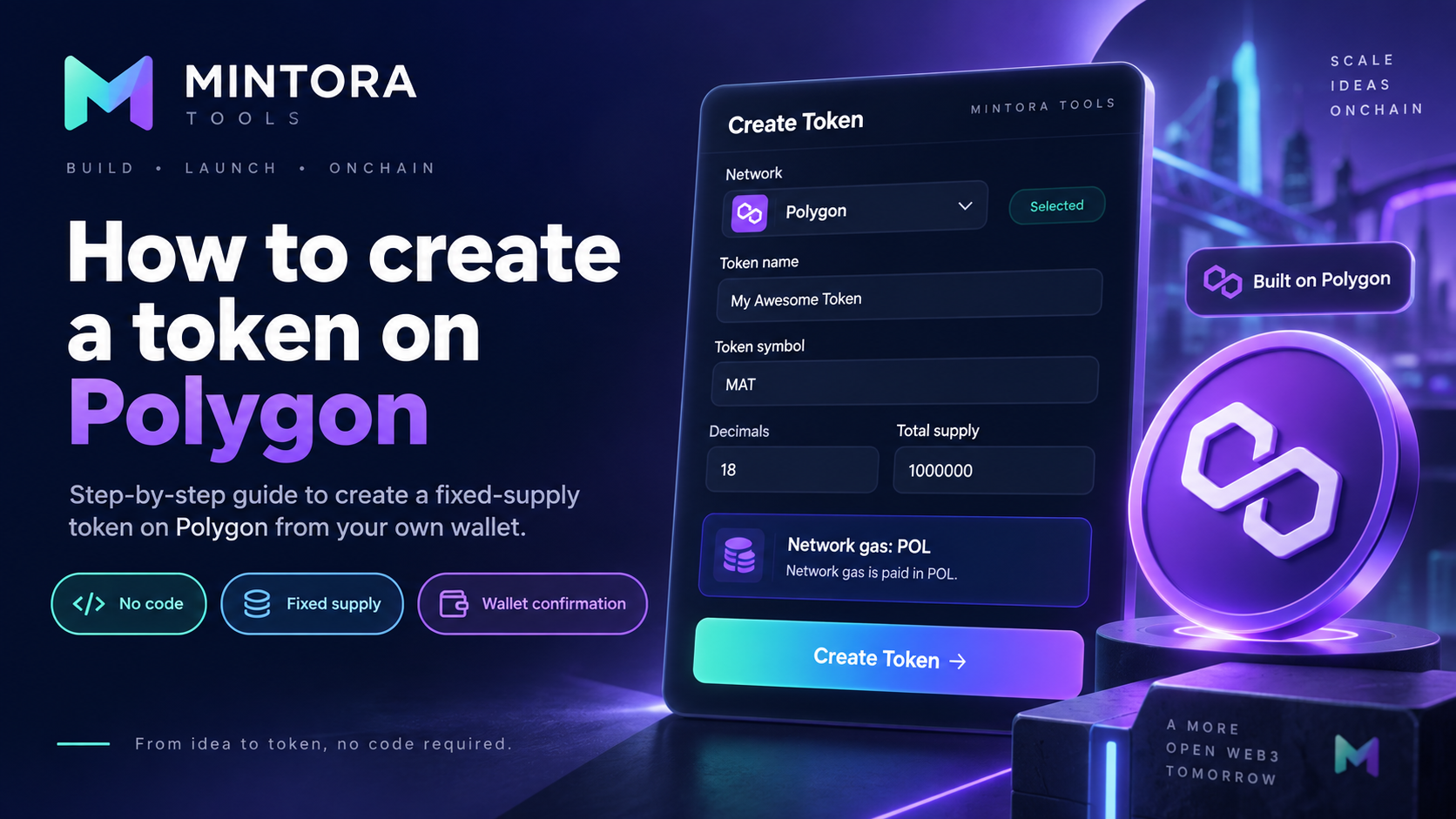
Polygon is one of the networks currently available in MINTORA Tools for creating a token without manually writing Solidity. The workflow keeps final transaction approval in your own wallet: select the network, define the token parameters, review the costs and authorize a real blockchain transaction.
If you are new to the platform, start with our general guide to creating a token without coding. This article focuses specifically on Polygon and the checks that matter before you confirm the deployment.
What you need before creating a token on Polygon
Before you start, define the token name, symbol or ticker, and total supply. In the current MINTORA Tools model, tokens use 18 decimals and a fixed supply set at creation.
You also need a wallet compatible with Polygon and enough POL to cover gas. Network gas is separate from the MINTORA service fee.
Step 1: select Polygon in the token creator
Open the token creator and select Polygon before continuing with the configuration. This choice determines the network where the transaction will be sent and the native asset required for gas.
Before signing anything, confirm that your wallet is connected to Polygon. Keeping the network selected in the application aligned with the active wallet network helps prevent avoidable transaction errors.
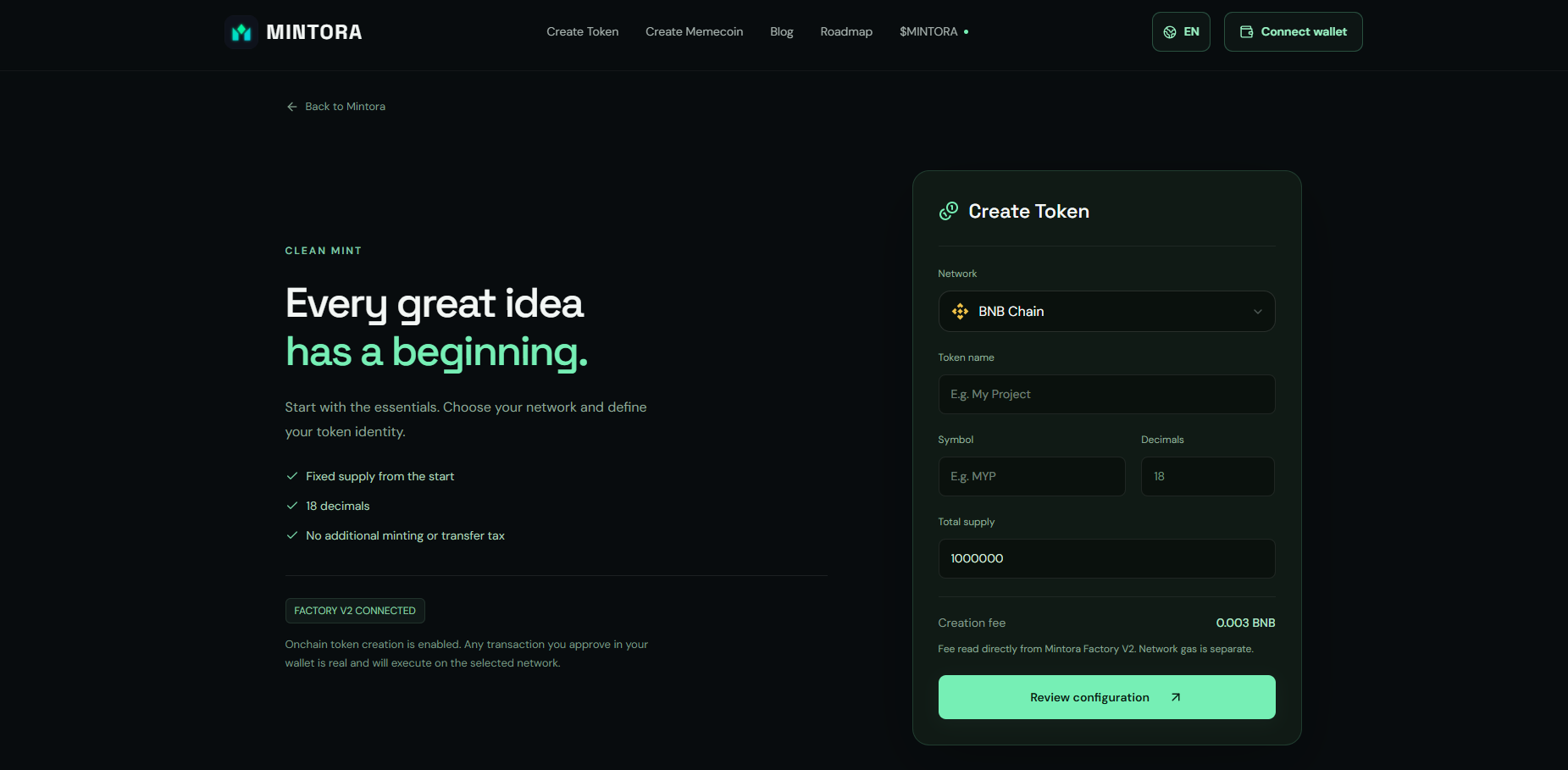
Step 2: configure the name, symbol and supply
Enter the token name, its symbol and the total supply. Review the ticker and supply carefully before proceeding because these values are part of the configuration used to create the contract.
In the current MINTORA model, supply is defined at creation. The contract does not include a later mint function for increasing the supply or a transfer tax.
Step 3: prepare POL for gas
Polygon uses POL to pay for gas, so the connected wallet needs enough POL to execute the transaction. Gas costs can vary depending on network conditions at the time of the transaction.
Do not confuse gas with the MINTORA creation fee. They are separate costs: the service fee belongs to the platform, while gas pays for execution on Polygon.
Step 4: connect your wallet and review the configuration
Connect your wallet from the interface and recheck the network, token name, symbol, supply and displayed costs. MINTORA does not need your seed phrase or private key: final authorization takes place in your wallet.
Step 5: confirm the onchain creation
When all values are correct, request the transaction and review it in your wallet before confirming. The token is created onchain once Polygon confirms the transaction.
How to verify the token after creation
After confirmation, save the contract address and open the transaction in a Polygon block explorer. Verify that the token name, symbol and supply match the values configured in MINTORA.
The contract address is the token's primary technical identifier. Names and symbols can be reused by other contracts, so they should not be relied on by themselves to identify an asset.
Creating the token does not create liquidity or guarantee price
Deploying a token and creating liquidity are separate processes. Creating the contract does not guarantee price, trading volume, exchange listings, community growth or financial performance. Those components must be handled separately if you choose to develop them later.
Common mistakes to avoid
Common mistakes include having the wallet on a different network, holding insufficient POL for gas, entering the wrong symbol, or setting an unintended supply. Reviewing the configuration before signing is an essential part of the process.
Conclusion
Creating a token on Polygon with MINTORA Tools means selecting the network, defining the parameters, holding POL for gas, connecting your wallet, reviewing the costs and confirming the transaction. The no-code workflow reduces technical friction without replacing the user's responsibility to verify the transaction before signing.
Frequently asked questions
Do I need to know Solidity to create a token on Polygon with MINTORA?
No. The workflow is designed to configure and create the token without manually writing the Solidity contract.
What do I need to pay gas on Polygon?
You need POL in the connected wallet. Network gas is separate from the MINTORA service fee.
Can I increase the supply after creating the token?
In the current MINTORA model, supply is fixed at creation and the contract does not include a later mint function for increasing it.
Does creating a token on Polygon guarantee liquidity or price?
No. Contract creation is separate from liquidity, price, exchange listings and any financial performance.